How to Use YouTube End Screens to Boost Views
A beginner guide to placing end screens and info cards without annoying your viewers or killing watch time.
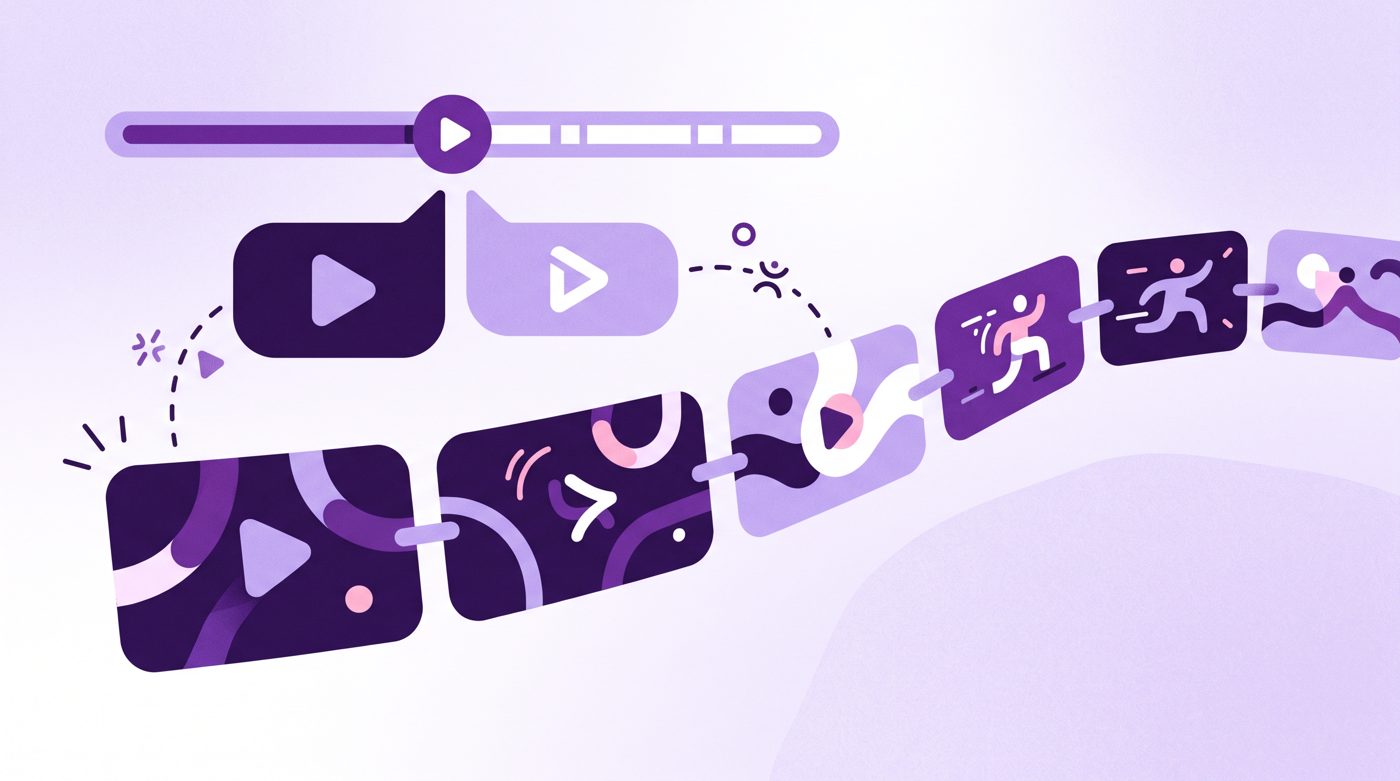
YouTube end screens are interactive boxes that pop up during the final 5 to 20 seconds of your video. You add them inside YouTube Studio to send viewers directly into another video, a playlist, or a subscribe button.
If you want to know how to use YouTube end screens well, the rule is simple. Give viewers one clear next step before they click away to watch someone else wash a carpet.
What Are End Screens and Info Cards?
End screens live at the end of standard landscape videos. Your video must be at least 25 seconds long to use them. YouTube lets you place up to four clickable boxes in that closing window.
Info cards are different. They are small teaser banners that slide out from the top right corner while the video plays. Viewers click an 'i' icon to see links to playlists or videos.
Both tools serve one master goal. They keep people on your channel so the platform sees your library as a rabbit hole worth recommending.
How to Use YouTube End Screens in YouTube Studio
Adding an end screen takes less than two minutes once your edit is uploaded. You do not need graphic design skills to set one up.
- Open YouTube Studio and click Content on the left menu.
- Click the pencil icon on the video you want to edit.
- Look on the right side of the screen and click End screen.
- Click the Element button to pick Video, Playlist, or Subscribe.
- Drag the elements on the preview screen to position them neatly.
- Slide the blue timeline bars at the bottom so elements appear at your planned moment.
You can pick three video options: Most recent upload, Best for viewer, or Choose specific video. In almost every case, picking a specific video works best.
The Secret to High End Screen Click Rates
Most beginners make a fatal mistake in their script. They say phrases like 'that is all for today' or 'thanks for watching.' Viewers hear that and immediately close the tab.
You want to bridge the topic into your next video while the current lesson still moves. Keep your energy up, introduce the next puzzle, and point directly to the thumbnail box on the screen.
Treat the end screen like a baton pass in a relay race. If you drop your arms and stop running before handing it off, nobody finishes the lap.
16,679,905 views on a channel with 4,760 subscribers, 3504.2 times its size.
This video by M45 reached 16,679,905 views with just 4,760 subscribers. That is 3504.2 times its channel size because it delivers pure curiosity right up to the final second of screen time.
Best End Screen Layouts for Faceless Channels
On faceless channels, you do not have a creator waving goodbye. You have visuals, motion graphics, and background music. That gives you clean space to frame your links.
- The Direct Path: One single video box taking center stage, paired with a small circular subscribe button.
- The Binge Option: One specific video box on the left, and a topic playlist box on the right.
- The Outro Card: A dedicated five-second closing graphic with pre-drawn frames where your boxes sit.
Do not crowd the screen with four different elements. Giving viewers too many choices makes them choose none of them.
You can check your click rates inside YouTube Studio by reading your audience metrics. We wrote a guide on how to read charts without panic if you want to see exact numbers.
How to Place YouTube Cards Without Hurting Watch Time
Info cards can easily backfire if you place them in the wrong spot. If you drop a card at minute one, people click it and abandon your current video before it builds watch time.
Only place an info card when you make an explicit spoken reference. If you say 'we covered ancient tools in an earlier video,' drop the card right on that sentence.
Another great spot is right after your retention dip. Check your retention graph, find where casual viewers drift away, and place a card right before that cliff.

16,280,356 views on a channel with 738,000 subscribers, 22.1 times its size.
Lifeder pulled 16,280,356 views on this long documentary, which is 22.1 times its channel size of 738,000 subscribers. Deep dive videos like this rely on cards to cross-promote related historical chapters.
Common Mistakes That Waste Your End Screens
One common issue is letting end screen boxes cover important text. If your voiceover is still explaining key bullet points, an end card covering the graphic looks messy.
Another mistake is extending your outro for 20 seconds of silence. Viewers click away the moment content stops, meaning your average percentage viewed drops like a stone.
- Keep your outro between 8 and 12 seconds instead of the full 20.
- Leave visual margins so buttons do not cover captions or faces.
- Avoid pointing to videos on completely unrelated subjects.
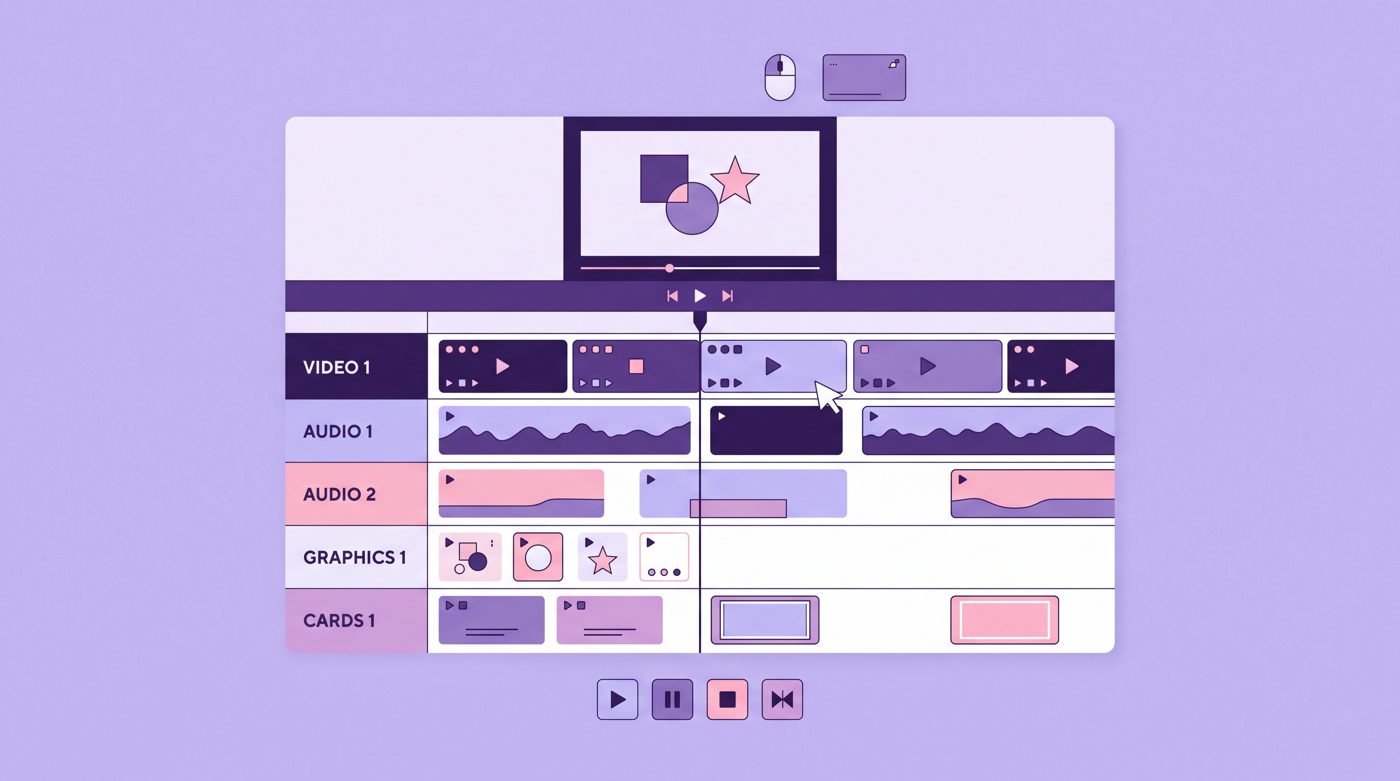
Building Your End Screen Outro Template
You do not need paid editing tools to build an outro frame. You can use any best free video editor for faceless youtube to save a ten-second video clip.
Drop two colored boxes on a blank background where the YouTube elements sit. Export that clip and place it at the tail of every project timeline.
When you edit, bring your background music down slightly and let your voiceover deliver the final hook right over the graphics.
If creating every visual and voiceover track by hand feels like a second full-time job, you can check out Naravid. It turns your written script into a finished, narrated, and illustrated video in minutes.
Useful links
- YouTube Help: Add End Screens to VideosOfficial guidelines on aspect ratios and technical rules for end screen elements.
- YouTube StudioThe dashboard where you edit video details, cards, and end screens.
- Canva Video EditorA quick browser tool for building simple 10-second end screen layout templates.
Questions people ask
Can you put end screens on YouTube Shorts?
No, YouTube end screens are only available on standard landscape videos. Shorts use related video links that you set in YouTube Studio details instead.
How long should my end screen be?
Between 8 and 12 seconds is ideal. That gives viewers enough time to click without letting dead air drag down your overall watch time.
Why is my end screen button grayed out in YouTube Studio?
Your video is either shorter than 25 seconds, or it is set as Made for Kids. End screens and cards are disabled automatically on content made for children.